How can we help?
Viewing the Contract Notes Inbox
The contract notes inbox in your Sharesight portfolio displays all emails sent to your portfolio email address. You can check the status of each email, view the original contract note, and request a copy to be resent.
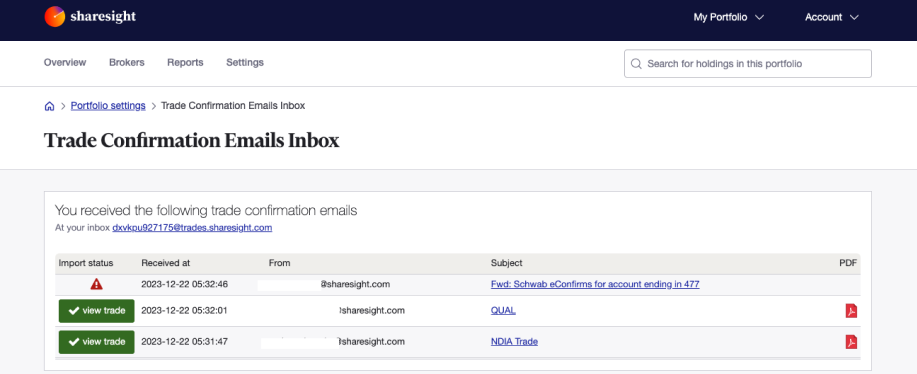
How to access the contract notes inbox
- From any page, click the Settings tab.
- Click Trade Confirmation Email from the Connection section.
- Select View email inbox.
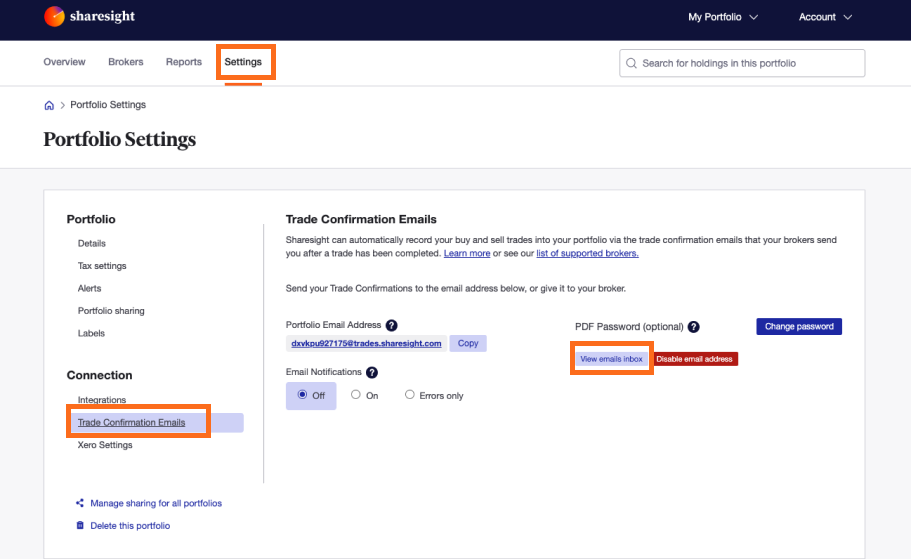
You can also access the inbox directly from the contract note notification email — click the link in that email if you have notifications enabled.
Checking the status of a contract note
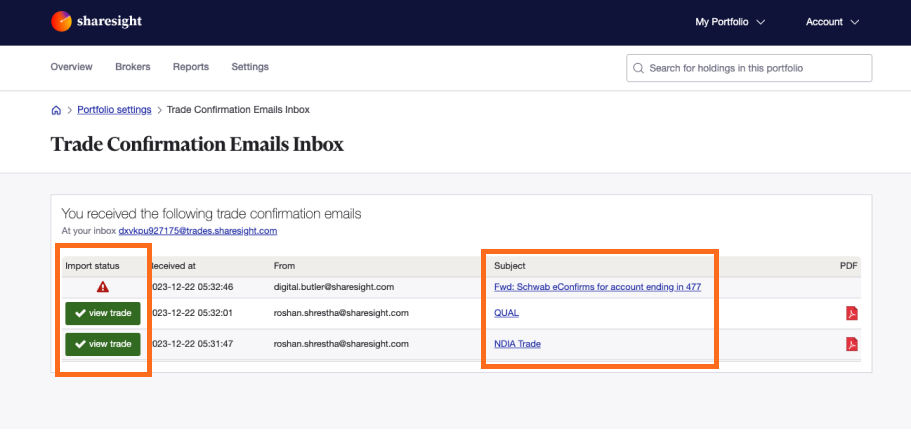
The Import status column shows whether each email was processed successfully:
 Green box — processed successfully
 Red triangle — failed to process
Viewing the original contract note
Click the PDF icon next to the entry to open the original contract note. 
Viewing or resending the broker email
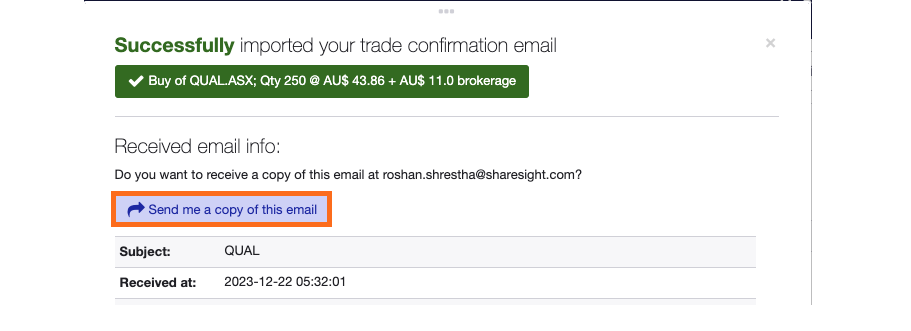
Click on the link in the Subject column or the status icon in the Import status column to open the email details.
To receive a copy of the email, click Send me a copy of this email.
Last updated 22nd March 2026